
In your Shopify store, shoppers see it on themselves.
With a try-on button on your product page, visitors upload a photo of themselves and see the product on themselves in seconds. You follow try-ons, emails and the orders that followed them in your Shopify admin.
- An app block in the theme editor, no code
- Inside your Shopify admin
- Billed through Shopify
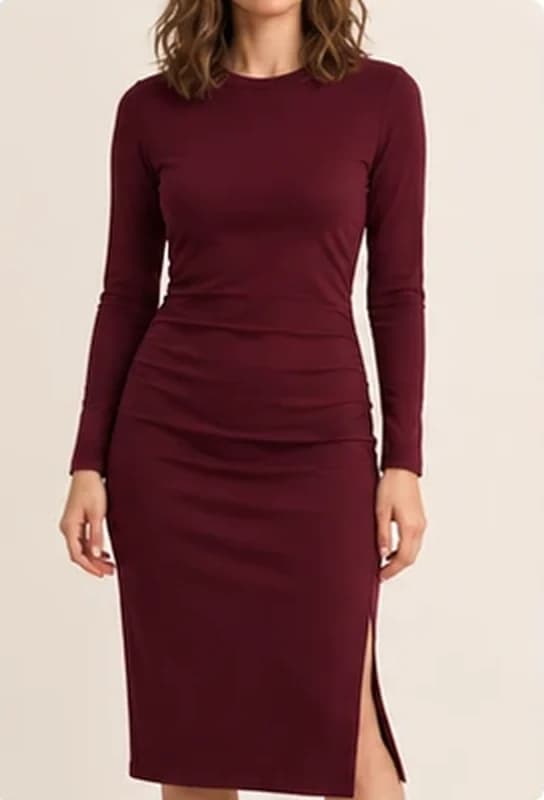
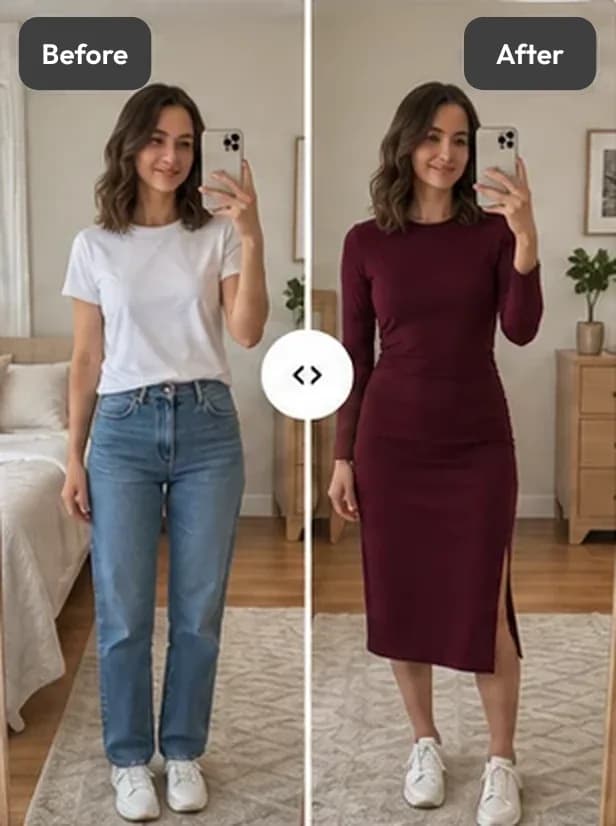
This is an AI preview. Fit and size are illustrative only.
Illustrative images · sample store
Aynada’s Shopify app is coming to the Shopify App Store soon. Write to us to hear when it launches
- No code
- Photos are never used to train AI
- Email only with consent
- Made by HomeVisioner
Live in four steps.
With Shopify’s own theme editor, without adding code to your theme.
- 1
Install the app
From the Shopify App Store, in a few clicks.
- 2
Add the block
In the theme editor, add the “Aynada” app block to the product page and choose where it sits.
- 3
Choose products
You decide which products show the button.
- 4
Follow the results
Try-ons, emails left and the orders that followed a try-on, in your admin.
From try-on to order, inside Shopify.
Shoppers try on on the product page; you see the outcome in your admin.
Try-on on the product page
The visitor uploads a photo and sees the product on themselves in seconds. No app to download, no account.
Analytics from try-on to order
Orders that followed a try-on are matched by email and cart. That shows an order followed a try-on, not that the try-on alone made the sale.
Email capture with consent
After the first free try-on the shopper may be asked for an email; the marketing choice is asked separately. Download the records as CSV.
Product insights
How often each product is tried on; advanced analytics from the Growth plan.
Photos are kept privately and deleted after 30 days.
Deleted after 30 days
The shopper’s photo and the try-on image are stored privately and deleted automatically 30 days after the try-on.
No AI training
Photos and results are never used to train any AI model.
Email only with consent
Shoppers give their email themselves; the marketing choice is asked separately.
Deletion requests
Shopify’s customer and shop deletion requests delete the images and records concerned.
Billed through Shopify.
Plans and prices will be on the listing once the app is live on the Shopify App Store. Payment is taken on your Shopify bill.
Frequently asked questions
When is Aynada live on Shopify?
Soon, on the Shopify App Store. Write to us if you’d like to hear when.
Does setup need code?
No. The button is added to the product page as an app block in the theme editor; you choose which products show it in the app.
What happens to the shopper’s photo?
The photo is processed only to create the requested try-on image, stored privately and deleted automatically 30 days after the try-on. It is never used to train AI models.
Is it the same as Aynada on ikas?
Try-on, analytics and email capture are the same. Studio (images with models) is on ikas only for now, and photos are kept differently: on ikas they are not kept at all.
Does the result guarantee size or fit?
No. The result is an AI preview: it gives an idea of how the product looks on the shopper, but fit and size are illustrative only.
How is it billed?
Through Shopify, on your Shopify bill. You can change your plan inside the app.