
Virtual try-on for shoes
With Aynada, a shopper sees a pair of shoes on a photo of themselves before they buy. Below are real results with ankle boots, sandals and sneakers from our demo store, and what to know before you switch it on.
Install on ikasReal results
The people in these sample photos are AI-generated models, not real shoppers. The try-on results are Aynada's real output, made with Aynada's Shopify app on our own demo store and not retouched; they are only scaled down for this page.
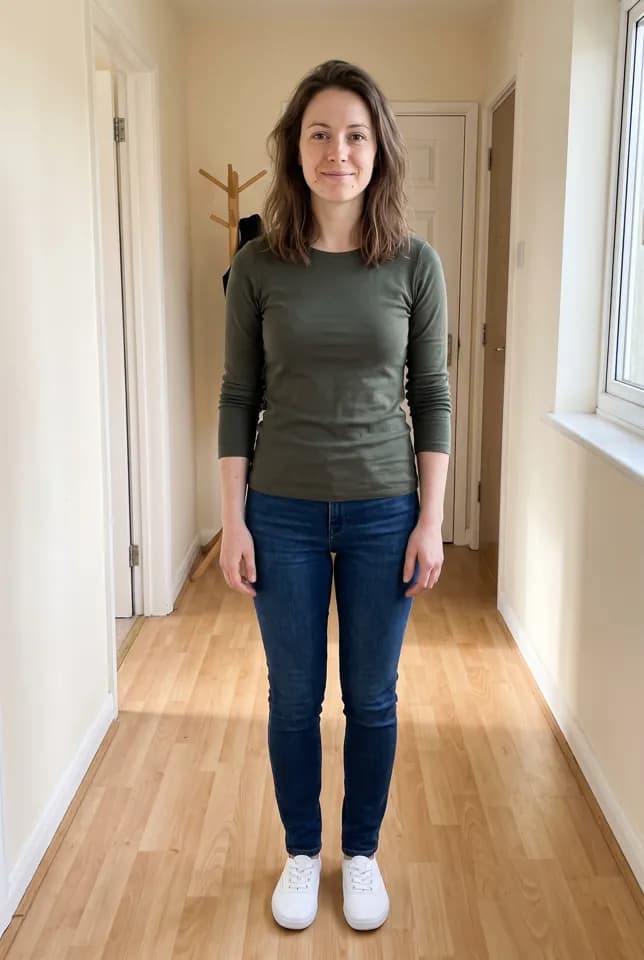
Shopper's photo 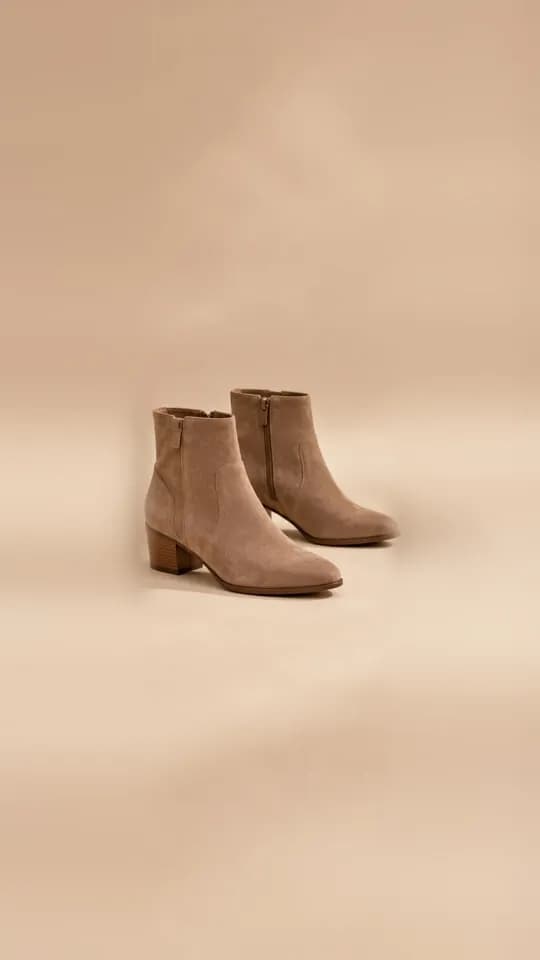
Product 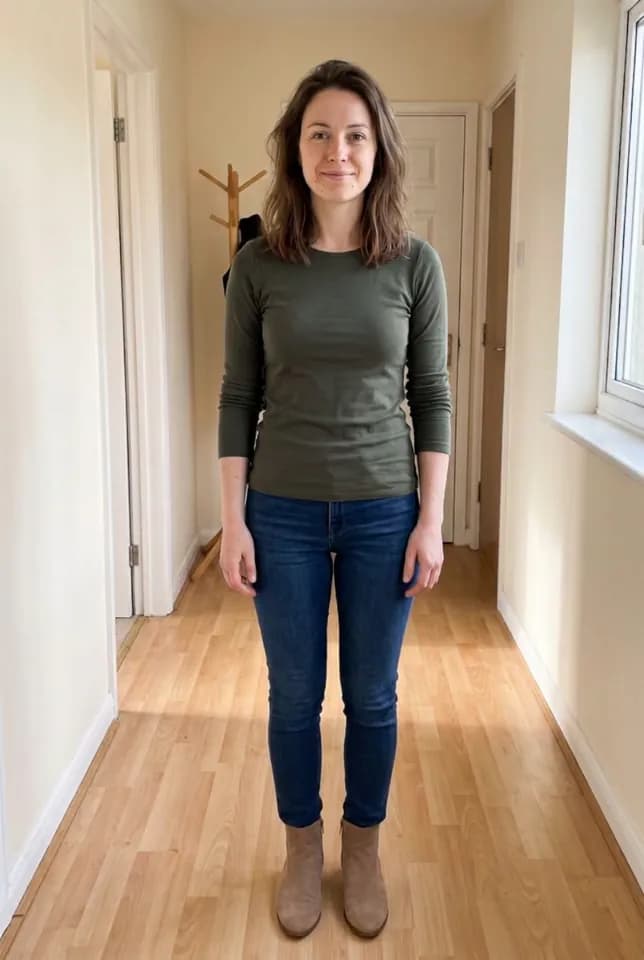
Aynada's result The Taupe Suede Ankle Boots on a full-length photo of a woman at home, replacing the shoes she was wearing.
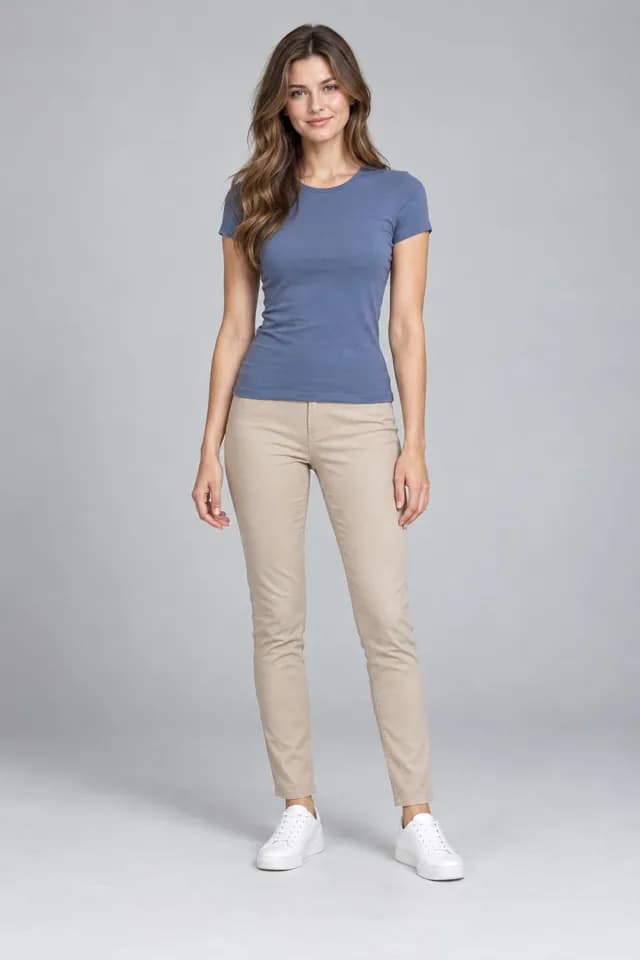
Shopper's photo 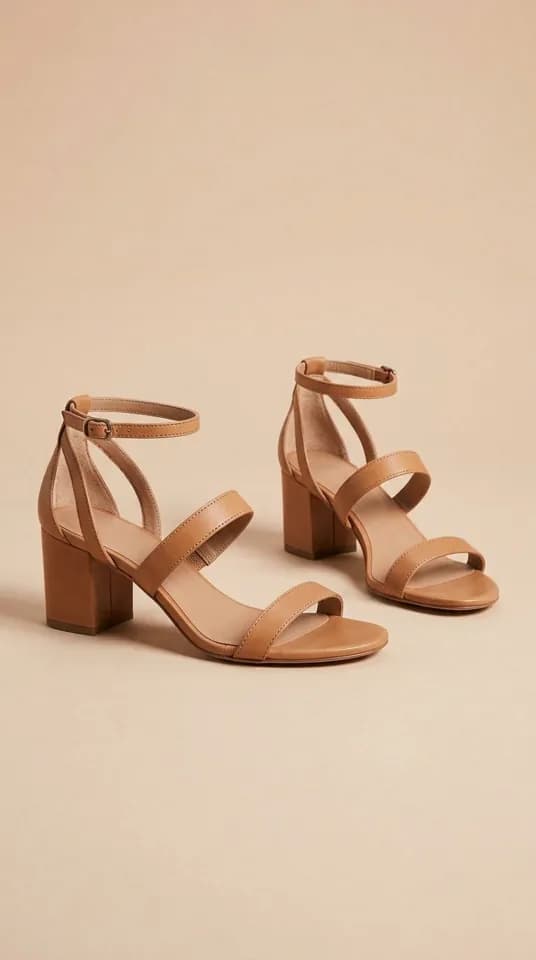
Product 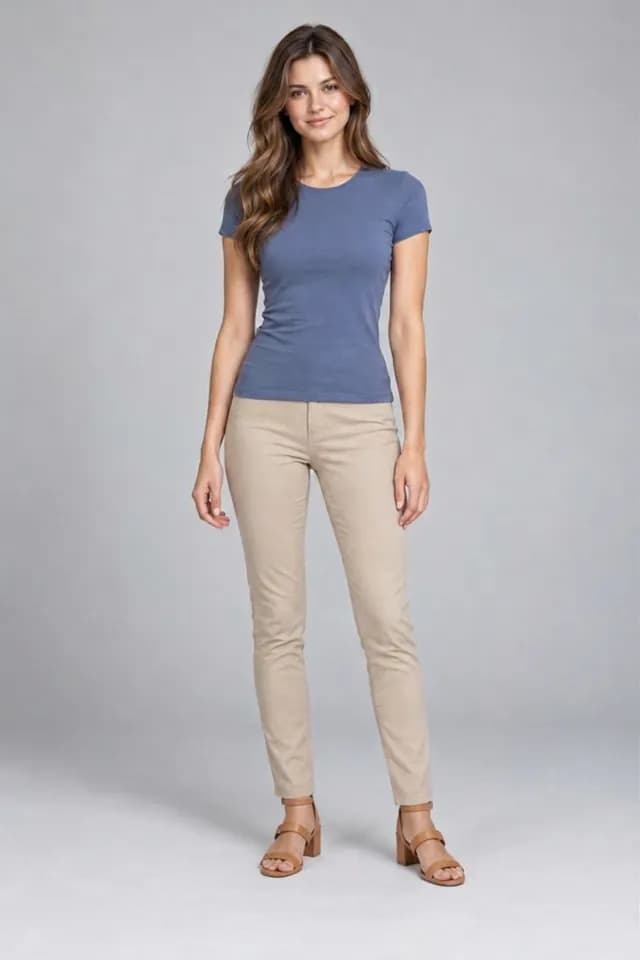
Aynada's result The Strappy Block-Heel Sandals on a full-length studio photo of a woman. In a full-length photo the sandals look small; a closer frame would show them better.
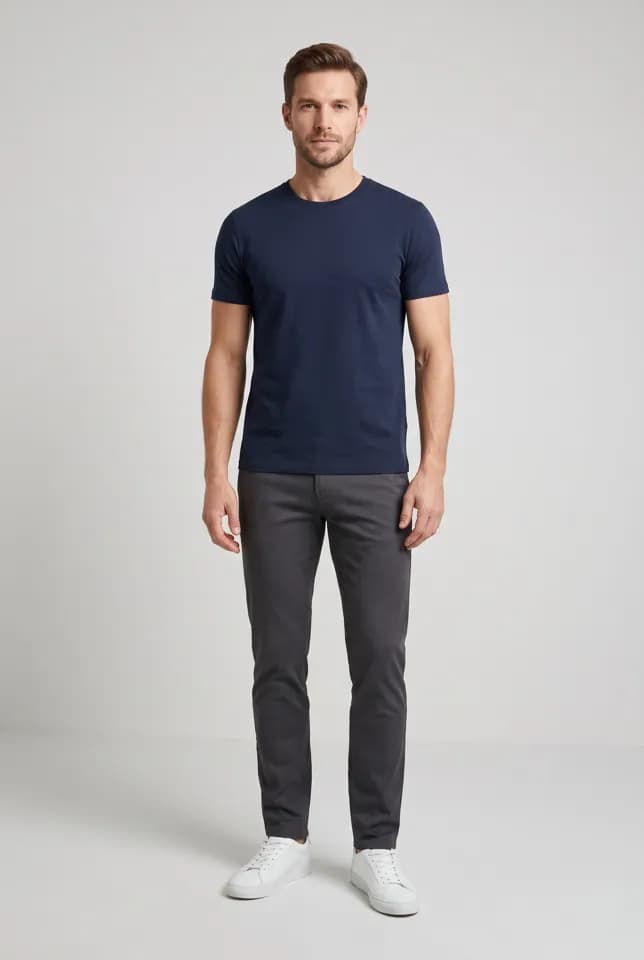
Shopper's photo 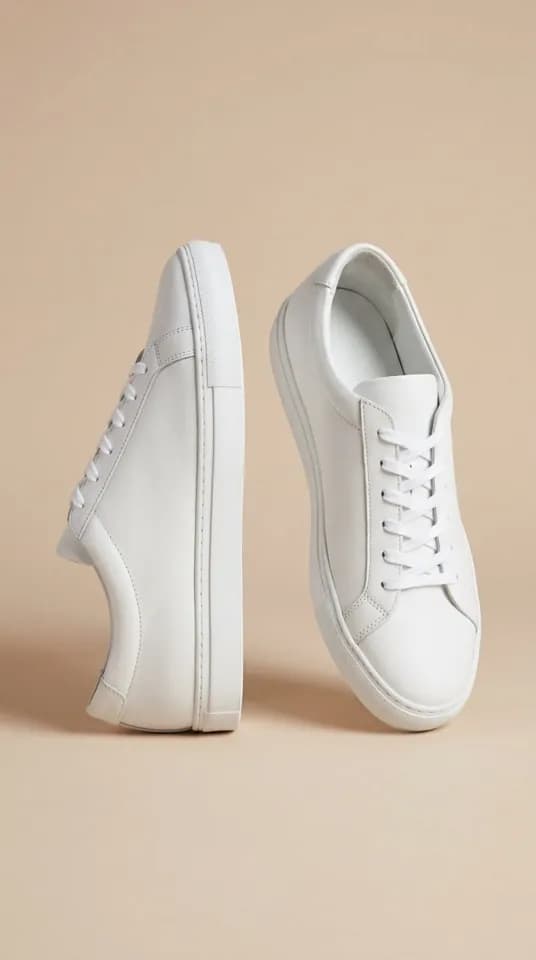
Product 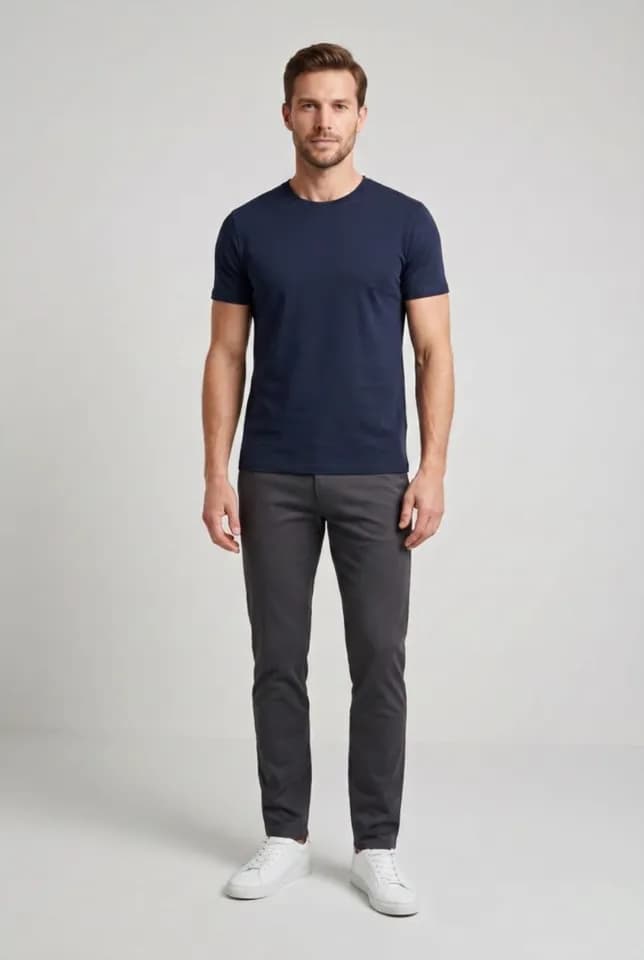
Aynada's result The Minimal White Leather Sneakers on a full-length studio photo of a man. The result is right, but he was already wearing white sneakers, so the before-and-after difference is small.
What the shopper does
The try-on happens on your product page, with no app to download and no account. The shopper taps the try-on button, uploads a photo of themselves, usually straight from the phone, and compares the result with the original photo in a before-and-after slider. The try-on window says it usually takes 15–20 seconds.
For shoes, the AI is told to replace the footwear the person is wearing with the product, on both feet, and to change only the footwear: face, hair, skin, body shape, pose, hands, clothing and background stay as they are. It is told to preserve the shoe’s colour, material, shape, details and logos, and to give it a realistic size relative to the person.
Every result tells the shopper that it is an AI preview, not a statement about fit or size.
Which photo works best for shoes
The examples on this page were made with Aynada’s Shopify app on our own demo store. The people in the photos are AI-generated models, not real shoppers; the try-on results are Aynada’s real output, not retouched.
For shoes, the ikas try-on window asks for a full-length photo including the feet, in good light, and advises against feet out of frame or in the dark. On ikas, when the browser cannot see feet in the photo, it tells the shopper before they continue. All three examples above are full-length photos.
How you switch on shoe try-on
On ikas, you install Aynada from the ikas App Store. No code and no theme edits are needed: the button places itself next to “Add to cart”. You choose which products show it, by category or for single products, so you can start with your shoes. A store new to Aynada on ikas starts with the button switched off on every product. Aynada for ikas has the details.
To decide what a product is, Aynada reads your category names, and the product name when the categories say nothing specific. On Shopify it reads the product type and the product name the same way. Clear category names such as “Sneakers”, “Boots” or “Sandals” give the AI the more specific rule. A product with no recognisable category is treated as clothing, so check a few products before you switch the button on everywhere.
Aynada for Shopify, the app the examples on this page were made with, is on its way to the Shopify App Store. There, the button is added to the product page as an app block in Shopify’s theme editor, and you choose which products show it. Details are on the Shopify page.
Where it falls short
The AI is told not to extend the image or invent parts of the body, so if the feet are not in the photo, the new shoes are not meant to appear. It does not always manage it: on our hats and scarves page, one result re-framed a close photo and drew a chest and arms that were not in it.
In a full-length photo, shoes take up a small part of the frame. In our sandal example they look small; a closer frame that still shows the feet would show them better. And when the shopper already wears similar shoes, the before-and-after difference is small, as in our sneaker example, where the model was already wearing white sneakers.
The result is a preview, not a size recommendation: Aynada does not know the shopper’s shoe size.
For every kind of product, Where virtual try-on works, and where it is weaker explains what makes results weaker and why.
Questions and answers
Do the feet have to be in the photo?
Yes. The AI is told to keep the shopper’s framing and not to invent parts of the body, so the ikas try-on window asks for a full-length photo including the feet.
What happens to the shoes the shopper is wearing?
The AI is told to replace them with the pair from your product page, on both feet, and to leave the rest of the outfit unchanged.
Does the result show whether a size fits?
No. The result is an AI preview, not a statement about fit or size, and a note on the result tells the shopper so.
Are the people in the examples real?
No. They are AI-generated models, not real shoppers. The try-on results are Aynada’s real output, made with Aynada’s Shopify app on our own demo store and not retouched.