
How to add virtual try-on to your ikas store, step by step
Published
This guide takes you from the ikas App Store to the first try-on on your own product page: installing Aynada, the setup wizard, choosing products, styling and placing the button, and where you see the results. You add no code to your theme. The Aynada panel is in Turkish, so its labels are quoted here as it writes them, with a translation in brackets.
Install Aynada and run the setup wizard
Aynada opens inside your ikas admin. The first time you open it, a setup wizard starts, “KURULUM SİHİRBAZI” (setup wizard), with five steps. If you close it before setup is complete, “Kurulum sihirbazını aç” (open the setup wizard) on the “Genel Bakış” (Overview) page reopens it at the first step you have not finished yet. What Aynada does for your store is on the Aynada for ikas page.
- Open Aynada’s listing in the ikas App Store and install it for your store.
- “İletişim” (Contact): enter a contact email and agree to receive service emails about your account, invoices, usage limit and setup, then “Kaydet ve devam et” (save and continue). This is the one step the wizard will not let you skip. News about new features is a separate, optional box.
- “Ürünler” (Products): choose where the button appears. “Tüm ürünlerde aç” (turn on for all products) switches it on everywhere at once; “Ürünleri seç” (choose products) takes you to the Products page to pick by category or product. A store new to Aynada starts with the button on no product, so this step matters.
- “Dene” (Try): the wizard checks three things, “Mağaza bağlantısı” (store connection: the script is installed on your store, nothing to add to the theme by hand), “Buton açık” (button on) and “İlk önizleme” (first preview). Use “Mağazamı aç” (open my store), go to a product you switched on, tap the button and upload a photo of yourself. “Tekrar kontrol et” (check again) refreshes the checks; “Sonra denerim” (I’ll try later) moves on.
- “Plan”: continue on Free with “Ücretsiz devam et” (continue for free), or start Starter, whose button reads “14 gün ücretsiz dene” (try free for 14 days). Payment opens in a new tab. “Tüm planları karşılaştır →” (compare all plans) opens the Billing page.
- “Özelleştir” (Customise): optional. “Ayarları aç” (open settings) takes you to the button’s look and position; “Kurulumu bitir” (finish setup) closes the wizard with the defaults.
Choose a plan
Plans are billed in euros. On the “Faturalandırma” (Billing) page the panel also shows an approximate amount in Turkish lira at the current exchange rate; because that rate changes daily, this guide gives euro prices only. You can change plan on that page at any time; payments are taken through Stripe.
| Plan | Price | Visualizations included | After the quota |
|---|---|---|---|
| Free | Free | 20 a month | Paused until the next calendar month |
| Starter | €24.99 / month, 14-day free trial | 100 a month | €0.30 per image, at most €50.00 a month |
| Growth | €74.99 / month (or €749.90 a year) | 300 a month | €0.25 per image, at most €200.00 a month |
| Pro | €199.99 / month (or €1,999.90 a year) | 1,000 a month | €0.20 per image, at most €500.00 a month |
Results carry an Aynada watermark on Free and Starter. Growth adds clean images without a watermark, advanced insights and priority support; Pro adds full white label with your own logo. On every paid plan you can set your own spending cap for extra usage on the “Faturalandırma” (Billing) page.
Choose which products get the button
The “Ürünler” (Products) page in the panel, headed “Hangi ürünler görselleştirilsin?” (which products should be visualized?), decides where the button shows. It has two tabs, with bulk actions above them:
- “Kategoriler” (Categories): one switch per category, with how many of its products are on. Turning a category off turns its products off. Products without a category are grouped under “Kategorisiz” (uncategorized) and are switched in the Products tab.
- “Ürünler” (Products): every product with its own switch, grouped by category, with search and a status filter. Tick several products to use “Butonu aç” (turn button on) or “Butonu kapat” (turn button off) on all of them at once.
- “Toplu işlemler” (bulk actions): “Tüm ürünlerde aç” (turn on for all products) and “Tüm ürünlerde kapat” (turn off for all products), which asks you to confirm first.
A choice made for a single product always wins over its category. Underwear and lingerie are left out unless you switch such a product on yourself. If you do and the AI service blocks the image, the shopper is told that some product types, such as underwear, are not supported.
There is also one master switch: “Butonu mağazada göster” (show the button in the store) in “Ayarlar” (Settings). With it off, the button shows on no product page, and your settings are kept.
Style the button
Open “Ayarlar” (Settings) and the tab “Buton ve yerleşim” (button and placement). The “Canlı önizleme” (live preview) beside the form shows your changes before you save them.
- “Buton metni” (button text): the default is “Aynada Gör”. While you keep it, shoppers see it in their store’s language, “Try it in the mirror” in English and “Im Spiegel anprobieren” in German. A text you write yourself shows exactly as written.
- “Hazır stiller” (ready-made styles): seven one-click looks, from Aynada’s coral-to-plum gradient to classic black and an outline style.
- “Biçim” (style: filled, outline or gradient), “İkon” (icon: camera, cube or none) and “Boyut” (size), plus your own colours. ikas does not share theme colours with apps, so to match your store you enter your theme’s colour code.
- “Dikkat çekici animasyon” (attention animation): a light sweep across the button every few seconds. Visitors who chose reduced motion never see it. Corner radius, padding and font weight are under “Gelişmiş” (advanced).
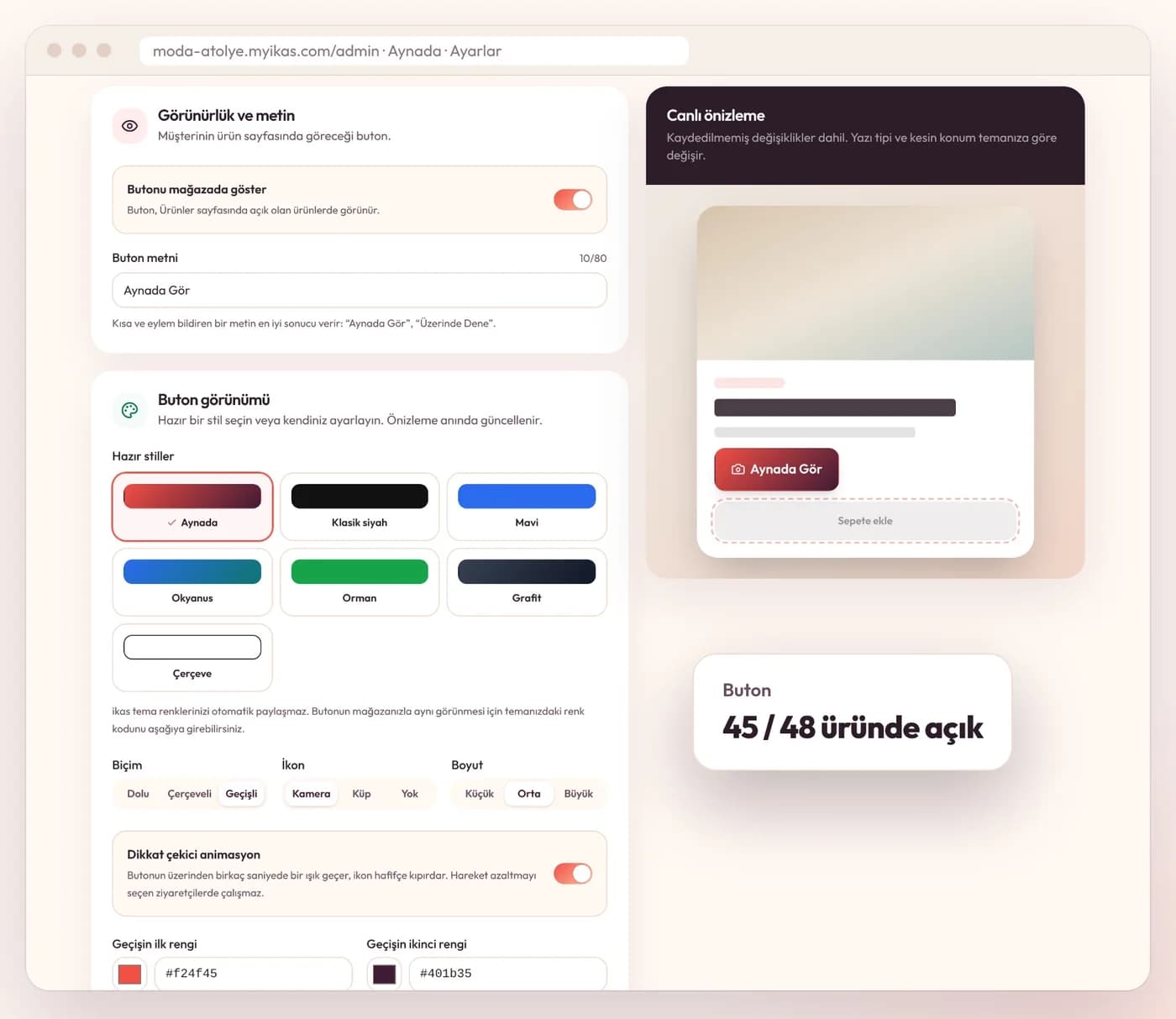
Press “Kaydet” (save). The change reaches your store within about a minute.
Place the button on the product page
Under “Yerleşim” (placement), the default is automatic: the button places itself next to “Add to cart” on the product page, above it unless you choose “Altında” (below). If the theme has no add-to-cart button the script can find, the button does not disappear; it shows fixed in the bottom-right corner.
If you want it somewhere else, the panel offers three ways under “Butonu başka bir yerde mi istiyorsunuz?” (want the button somewhere else?):
- “Buton yerini seç” (choose the button’s spot): check your store address (it is filled in as your .ikas.shop address; type your own domain if you use one) and press “Mağazamda yerini seç” (choose the spot in my store). Your store opens in a new tab in a picking mode only you see.
- On a product page, drag the button where you want it, or click the element it should sit next to, then press “Bu konumu kullan” (use this position). The position is saved at once. If it does not arrive in the panel, paste the code the store tab shows into “Kodu yapıştır” (paste code).
- Or use “Sağ altta sabit kullan” (use fixed bottom-right), or “Yapamadınız mı? Bize yazın” (didn’t work? write to us) to describe where you want it; support places it and sends you a code to paste. “Otomatik yerleşime dön” (back to automatic placement) undoes any of these.
What your shoppers see
The try-on window speaks the store’s language, Turkish, English or German. On a product you switched on, the shopper:
- taps the button and uploads a photo of themselves. The face does not need to show; the area being tried on needs to be in the frame. An optional fit or pose hint can be added.
- waits for the preview, which the window says usually takes 15 to 20 seconds, and sees the result and their own photo in a before-and-after comparison, with the note that it is an AI preview and fit and size are illustrative only.
- can download or share the result, and pick a variant and add it to the cart right below it. If the cart cannot be reached from the window, the shopper is told to use the product page’s own button.
After the first free previews of the day, the shopper is asked for an email address to keep going; marketing consent is a separate, unticked box. When the email is asked, and how many images one visitor can create per day, you set in “Ayarlar” → “Genel ayarlar” (general settings) under “E-posta ve günlük sınır” (email and daily limit); by default after 2 images, with at most 6 a day. The shopper’s photo is not kept, as our post on photo privacy explains.
Where you see the results: Analiz
“Genel Bakış” (Overview) shows the last 30 days at a glance: total visualizations, leads, attributed revenue and the most visualized products. The detail is on “Analiz” (Analytics), for the last 7, 30 or 90 days (“Son 7 / 30 / 90 gün”), 30 by default.
At the top are “İlişkilendirilen gelir” (attributed revenue), “Görselleştirmeler” (visualizations) and “Alınan müşteri adayı e-postaları” (lead emails collected), and below them “Performans trendi” (performance trend). Attributed revenue is not proof of extra sales the app brought: it shows that an order followed a try-on. Returned and cancelled orders are not deducted, but shown separately.
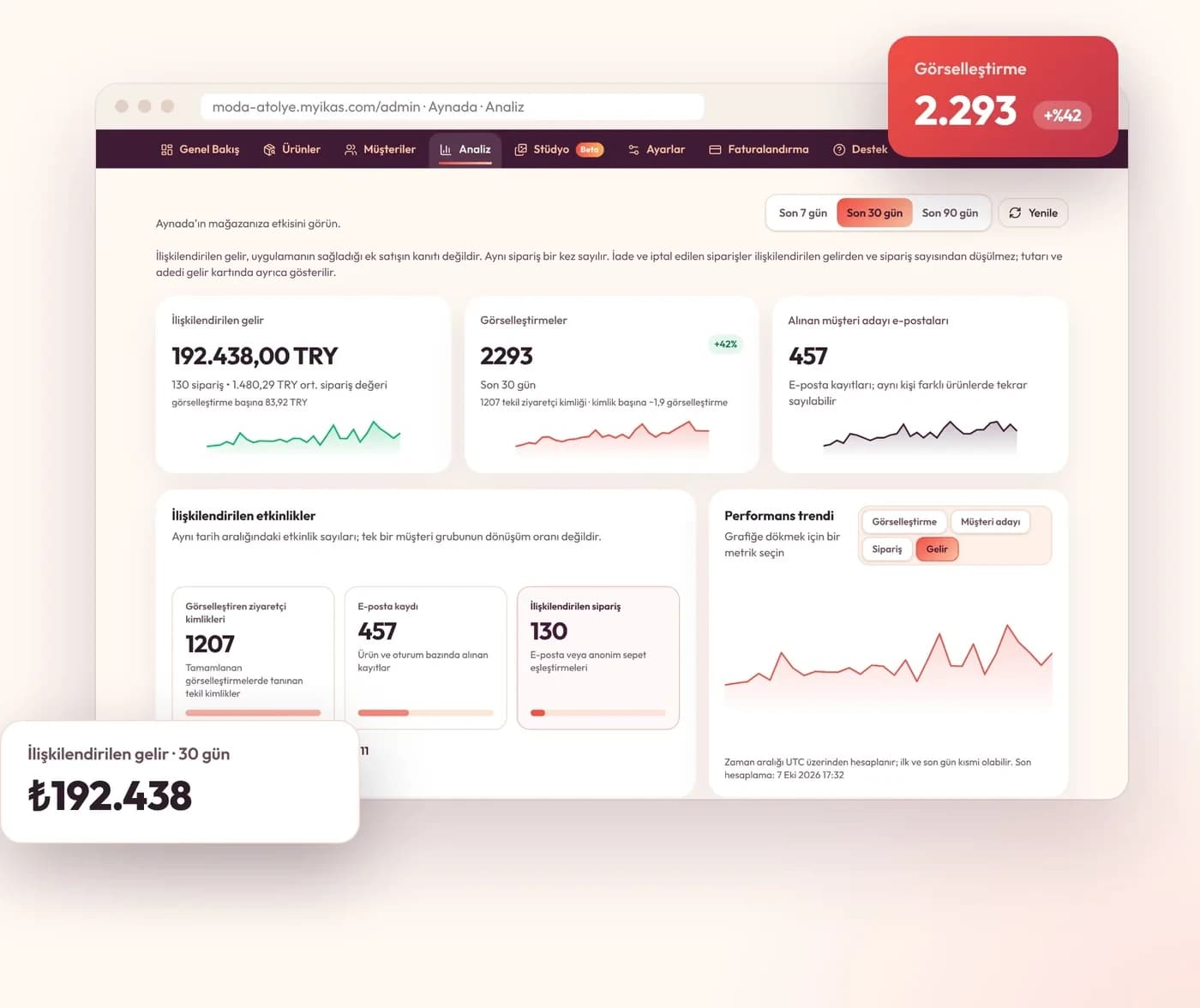
Product insights on the same page
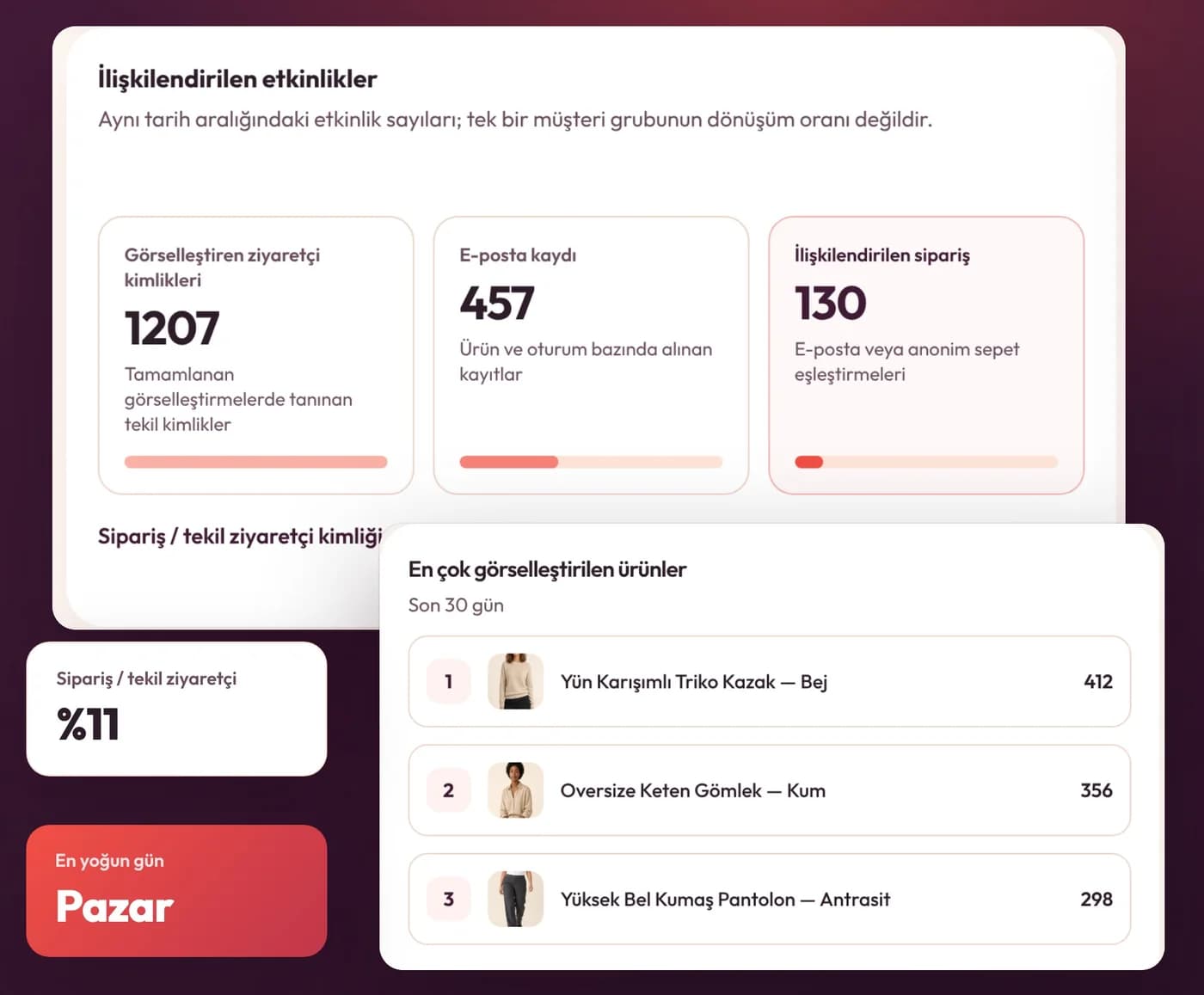
Further down “Analiz”, “İlişkilendirilen etkinlikler” (attributed events) counts visualizations, email sign-ups and attributed orders in the same period, and “En çok görselleştirilen ürünler” (most visualized products) ranks your products by visualizations, leads, orders and revenue. “Vitrin hunisi” (storefront funnel) counts product page views, button views, window openings and add-to-cart from the result.
“Gelişmiş analizler” (advanced analytics), with AI insights and the effect on return rate and average order value, are part of the Growth and Pro plans.
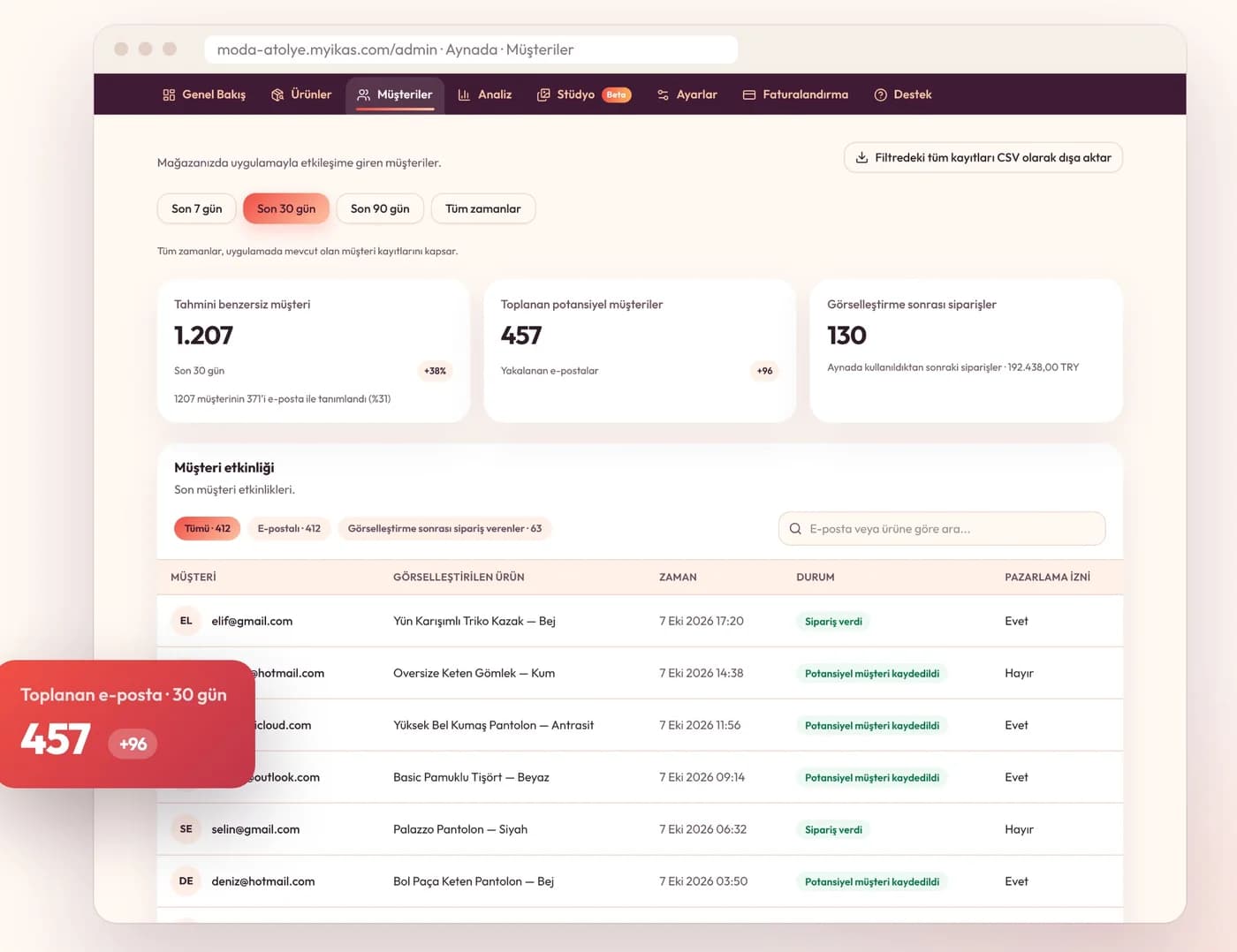
Who tried what: Müşteriler
“Müşteriler” (Customers) lists the email addresses shoppers gave, which product each one visualized, when, whether they ordered afterwards and whether they gave marketing consent. You can search by email or product and download everything in the current filter with “Filtredeki tüm kayıtları CSV olarak dışa aktar” (export all records in the filter as CSV).
Pausing or uninstalling Aynada
To pause, turn off “Butonu mağazada göster” (show the button in the store) in Settings: the button disappears from every product page and your settings stay.
To remove Aynada, uninstall it from your ikas store. ikas then tells Aynada, which deletes the store’s access credentials, stops receiving data from the store and deletes every image the store created, Studio shots and saved model photos included. The details are in the privacy policy for the ikas app.
Questions and answers
Do I need to edit my theme or add code?
No. The script is installed on your store when you install the app, and the button places itself next to “Add to cart”. You choose its look and, if you like, its position in the panel.
Why don’t I see the button on my product page?
Check three things in the panel: that the product is switched on under “Ürünler” (a new store starts with the button on no product), that “Butonu mağazada göster” is on in Settings, and that you saved. Changes reach the store within about a minute.
Can I get help with setup?
Yes, setup help is free. Open a chat from the “Destek” (Support) page of the Aynada panel or write to [email protected]; we set up the button’s placement and look together with you.
Sources
Read on the date the article was last updated.