
What is AI virtual try-on, and how does Aynada work?
Published
AI virtual try-on lets a shopper see a product on a photo of themselves before they buy it. This post explains what that means in practice, what a shopper does in Aynada, what you set up as a merchant, and where the idea ends: a try-on is a preview, not a promise about fit.
What is AI virtual try-on?
In an online fashion store, shoppers usually see a product on a model, on a hanger or laid flat. Virtual try-on adds one more view: the product on the shopper. The shopper uploads a photo of themselves, and an AI model edits that photo so the shopper is wearing the garment from the product images.
In Aynada the AI is told to change as little as possible. The shopper’s face, hair, skin, body shape, pose, hands and background stay as they are; only the clothing changes. The garment keeps its colour, pattern, logos, neckline, sleeves and length, and it is fitted to the person’s real body: the instructions say explicitly not to make the person thinner or change their proportions.
Accessories work the other way round: a bag, a pair of glasses or a watch is added to the person, and their clothing stays unchanged.
What does the shopper do?
The whole try-on happens on your product page. There is no app to download and no account to create. On an ikas store it goes like this:
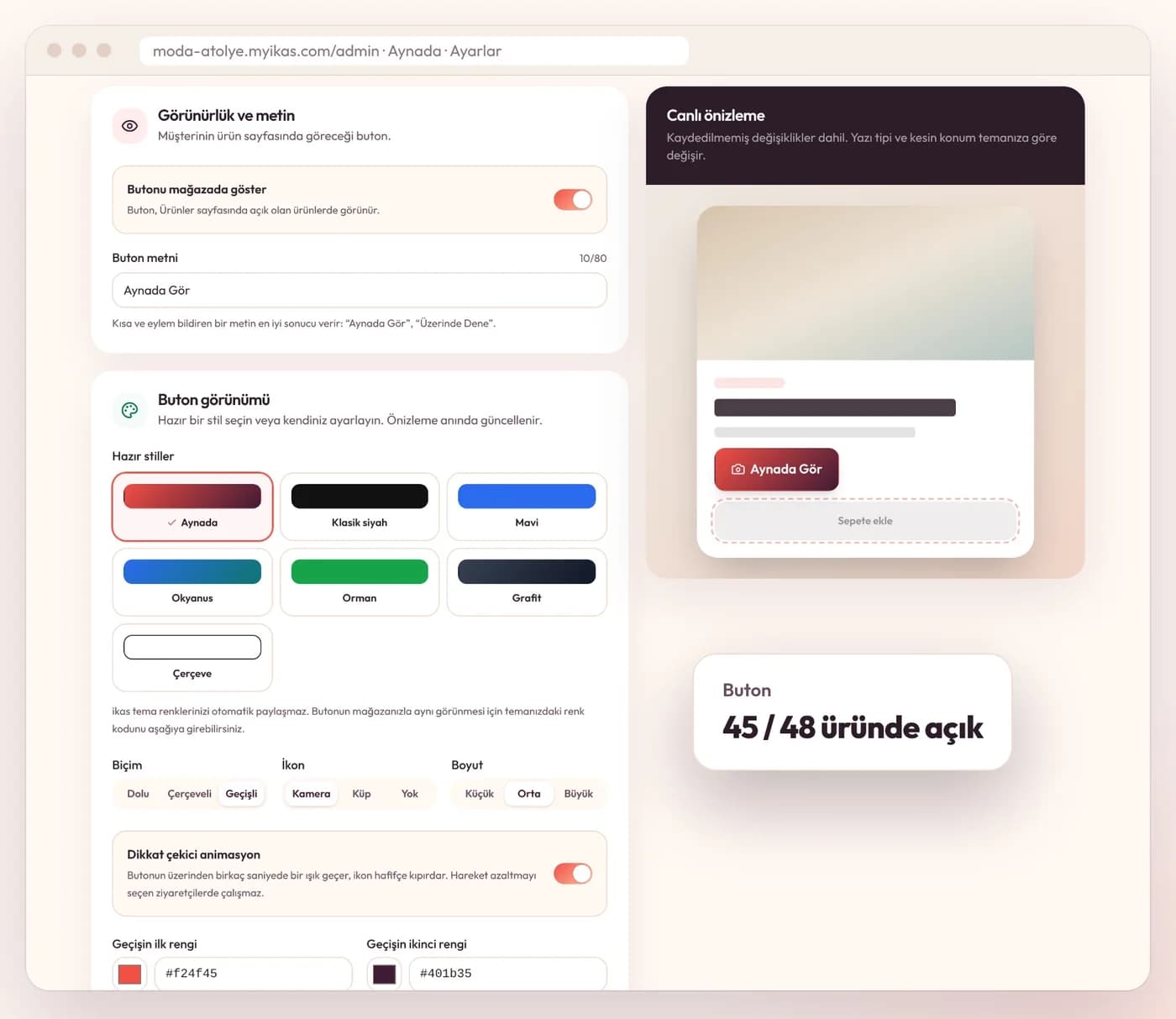
- The shopper taps the try-on button next to “Add to cart”. Its default text is “Try it in the mirror”; you can change the text, style and colours.
- They upload a photo of themselves, usually straight from the phone. The face does not need to show; the area where the product goes needs to be in the frame. The window shows a short tip for a good photo, and an optional field lets them add a fit or pose hint such as “loose fit”.
- As soon as a photo is chosen, the shopper’s browser checks on the device whether it shows a person; the photo is not sent anywhere for this check. It only gives guidance: if it is not sure, it says so and the shopper can still continue.
- A few seconds later (the window says it usually takes 15–20 seconds) the result appears in a before-and-after slider with the original photo.
- Below the result the shopper can download and share the image and, where the store’s theme allows it, choose a variant and add the product to the cart.
Every result carries the same note for the shopper: “This is an AI preview. Fit and size are illustrative only.”
What do you set up as a merchant?
On ikas, you install Aynada from the ikas App Store. No code and no theme edits are needed: the button places itself next to “Add to cart”, and you can choose a different spot if you prefer. In the Aynada panel you pick one of 7 ready-made button styles or your own colours and see the result in a live preview. If you get stuck, setup help is free. The ikas setup guide walks through it step by step.
You decide which products show the button: you switch it on by category or for single products. On ikas, a store that is new to Aynada starts with the button switched off on every product, and underwear and lingerie stay off unless you turn the product itself on, because a try-on of intimate wear on a shopper’s own photo is not something Aynada offers.
The panel then shows what happened: how often each product was tried on, the email addresses shoppers chose to leave (marketing consent is asked separately), and the orders that followed a try-on. The panel is in Turkish.
Aynada for Shopify is on its way to the Shopify App Store. There, the button is added to the product page as an app block in Shopify’s theme editor, and billing runs through your Shopify bill. Details are on the Shopify page.
What virtual try-on is not
A try-on image is a preview. It gives the shopper an idea of how a colour, a cut or a length looks on them. It is not a measurement and not a size recommendation: Aynada does not know the shopper’s measurements, and the image does not tell anyone whether a size M will fit. Your size chart and your return policy stay as important as they were.
It is also not a verdict on the shopper’s body. The image is edited from their own photo, and the rules above keep their body shape as it is.
Finally, a try-on does not prove a sale. When the panel shows an order that followed a try-on, it means the order came after it and is linked to it by email or by a cart match, not that the try-on alone made the sale.
What happens to the shopper’s photo?
The photo is used only to create the requested image and never to train AI models. How long it is kept depends on the platform: the ikas app keeps no photo, and the Shopify app stores it privately and deletes it 30 days after the try-on. What happens to the shopper’s photo covers both in detail.
Which products work best?
Aynada is designed for clothing, and it also handles shoes and accessories such as bags, glasses, hats, jewellery, watches, belts and scarves. Each needs a slightly different photo. Where virtual try-on works, and where it is weaker goes through the categories one by one.
Questions and answers
Does the shopper need an account or an app?
No. The try-on opens in a window on your product page and works on mobile and desktop.
Does the shopper’s face need to be in the photo?
Not for clothing. The area where the product goes needs to be in the frame. For glasses, earrings and hats, a clear photo of the face from the front works best.
Does the result show whether a size will fit?
No. The result is an AI preview; fit and size are illustrative only, and the shopper sees that note on the result.
Can I choose which products show the button?
Yes. In the panel you switch the button on or off by category or for single products. On a store new to Aynada on ikas it starts off on every product.